|
Accessing the Virtual Court with a Link
Courts will provide parties with links that are used to gain entry into the virtual courts.
Alternatively, a court may also provide an access code that can be used with a telephone to make a telephone call into the virtual court.
The four minute video below provides an introduction to attending a virtual court hearing.
Using Links on iOS or Android Device
When using either an iOS or Android device to access the virtual court, before clicking on the link,
you must first download and install the virtual court program onto your device.
Follow this link for download and install information for Android and iOS devices.
Using Links on a Windows PC
Court participants using a Windows PC must: (a) use a PC with Windows 7 or later, (b) use earbuds or a headset, and (c) use a webcam, if required by the court.
Click on the link provided by the court and your browser will open to a webpage similar to the one below.
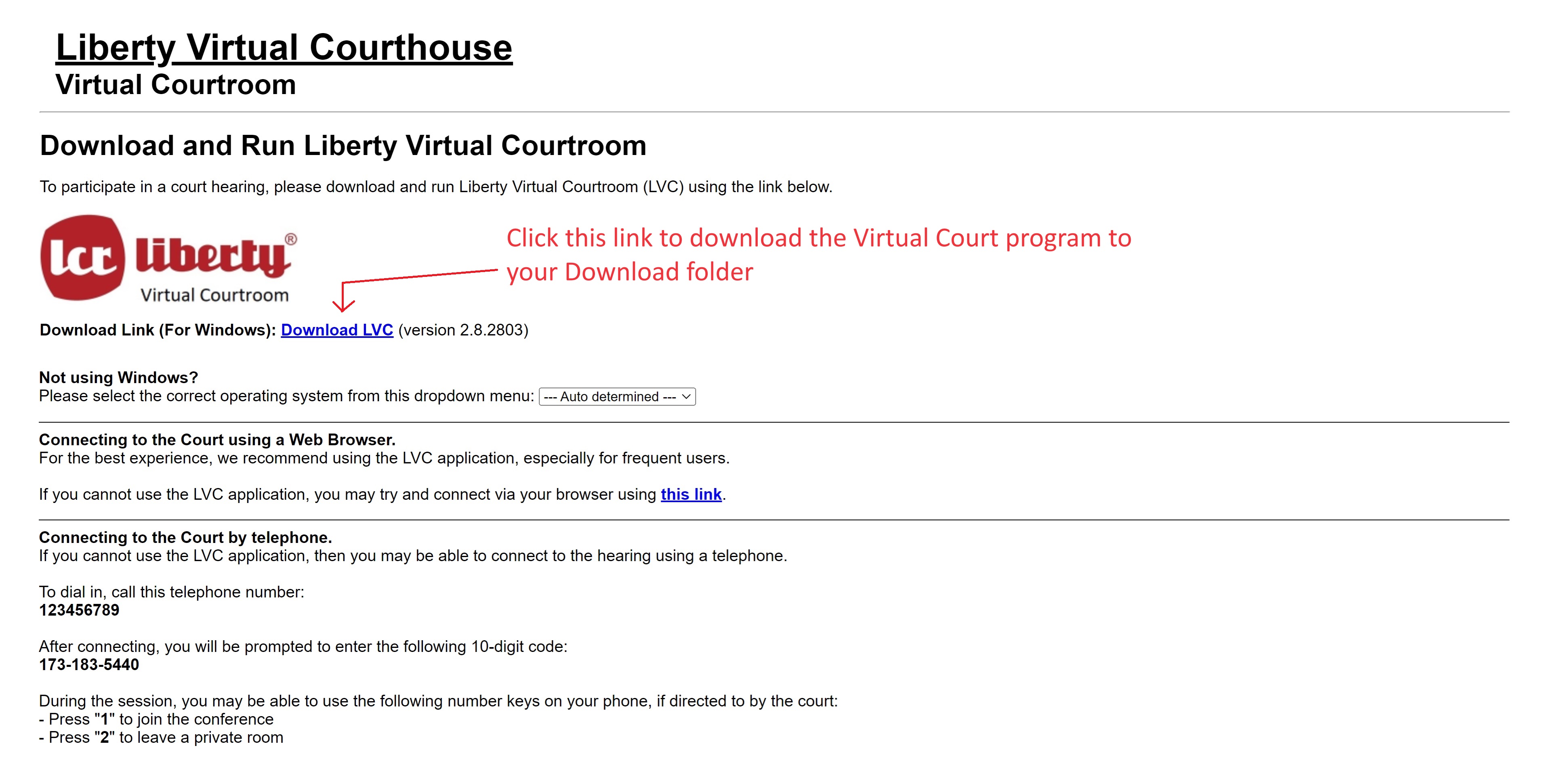
Choose to either download and run the Windows app or join the court from your browser.
Download and Run the Windows App
-
Click the "Download Windows App" button to download the virtual courtroom program to your downloads folder.
-
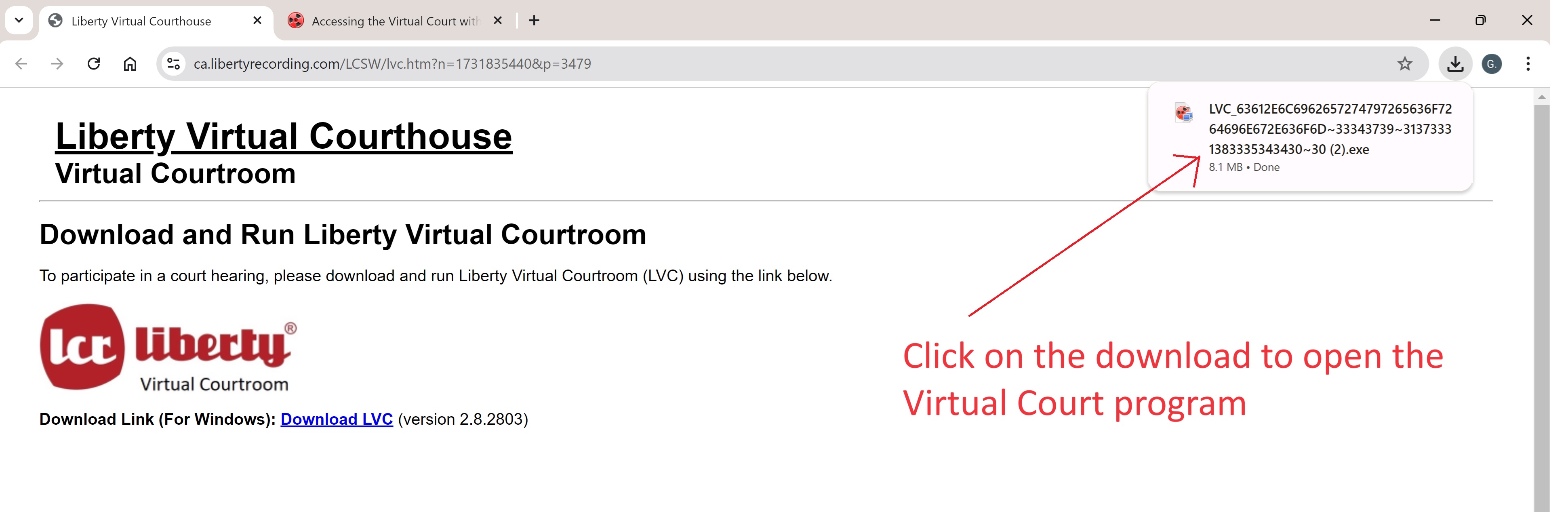
When the download is complete, your browser will display that the download is available in your downloads folder.
Various browsers will display this information in different ways.
Regardless of the exact display, "Open" the program directly from the browser or go to your downloads folder and click on the download to open the program.
You will likely need to confirm with Windows that you want to run the program.
-
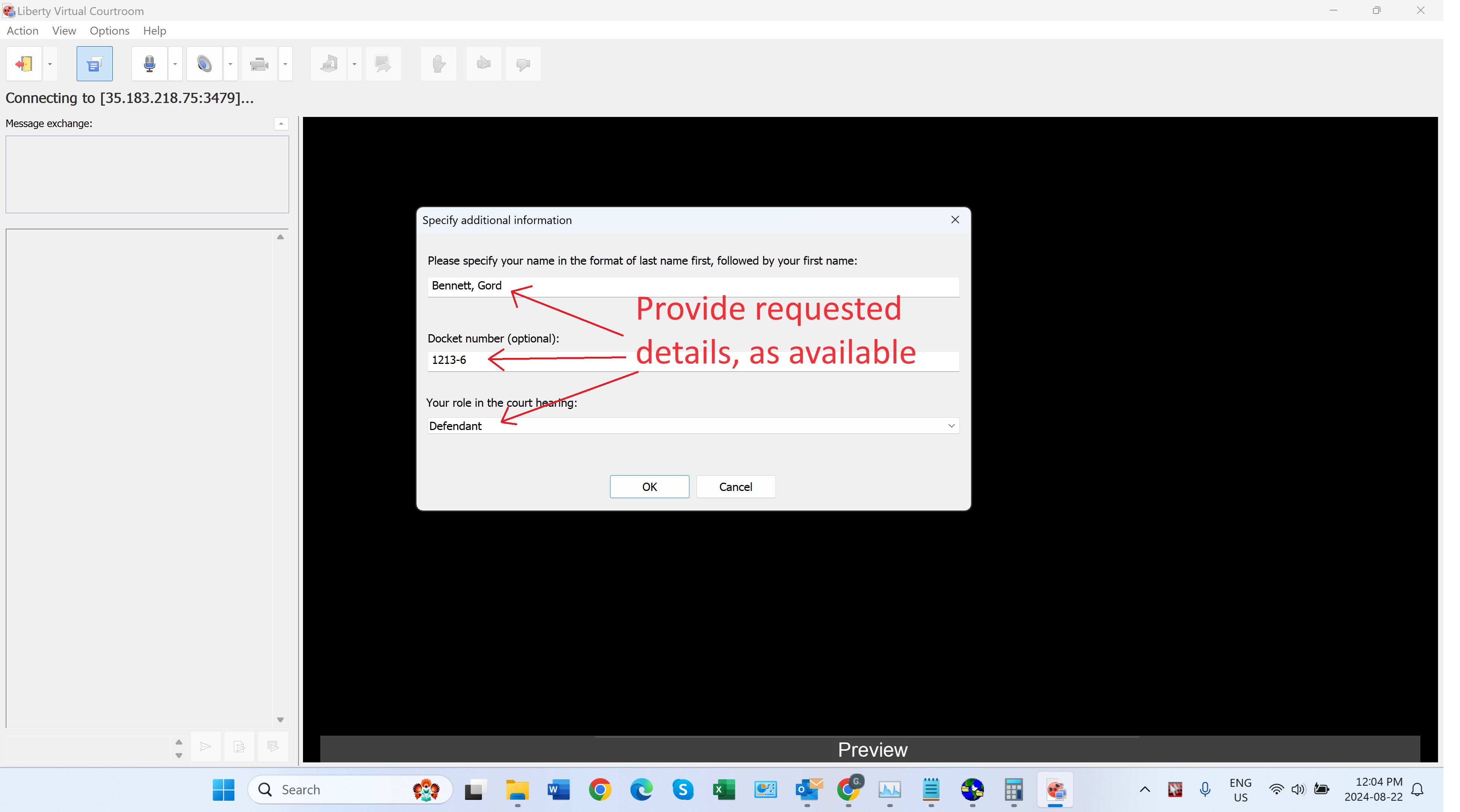
After the program starts, you may be prompted for additional information
such as your name, case or docket number or your role in the hearing.
After entering the requested information, click "OK".
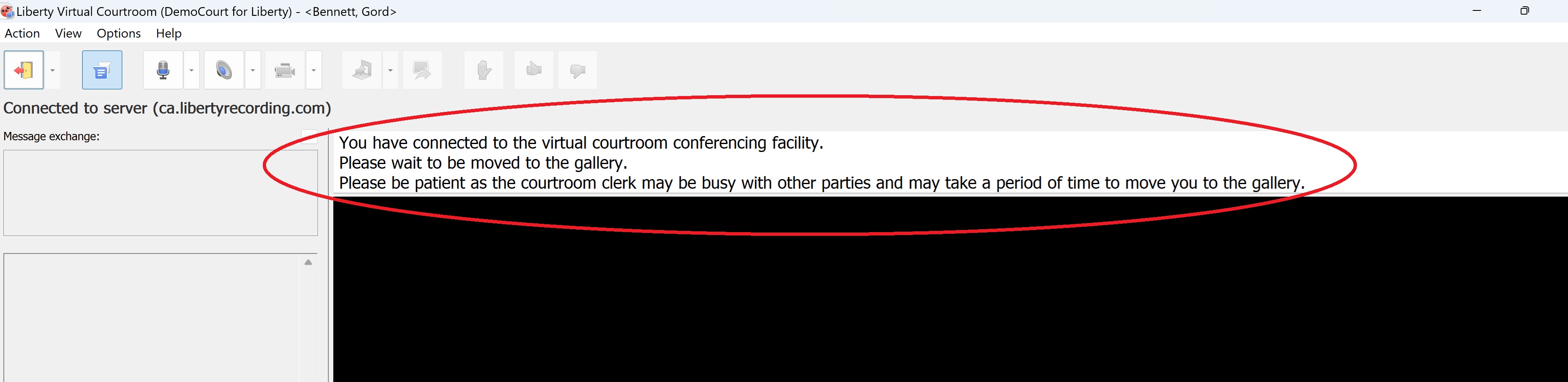
Once connected to the courtroom, the message seen below will appear. You must now be patient and wait for the clerk to begin the hearing.
Join from Your Browser
Note, the browser interface is not supported by all browsers or by all devices.
It is less stable than using the Windows App.
For the best experience, we recommend downloading and using the Windows App.
-
Click the "Join from your Browser" button to join the virtual court through your browser.
-
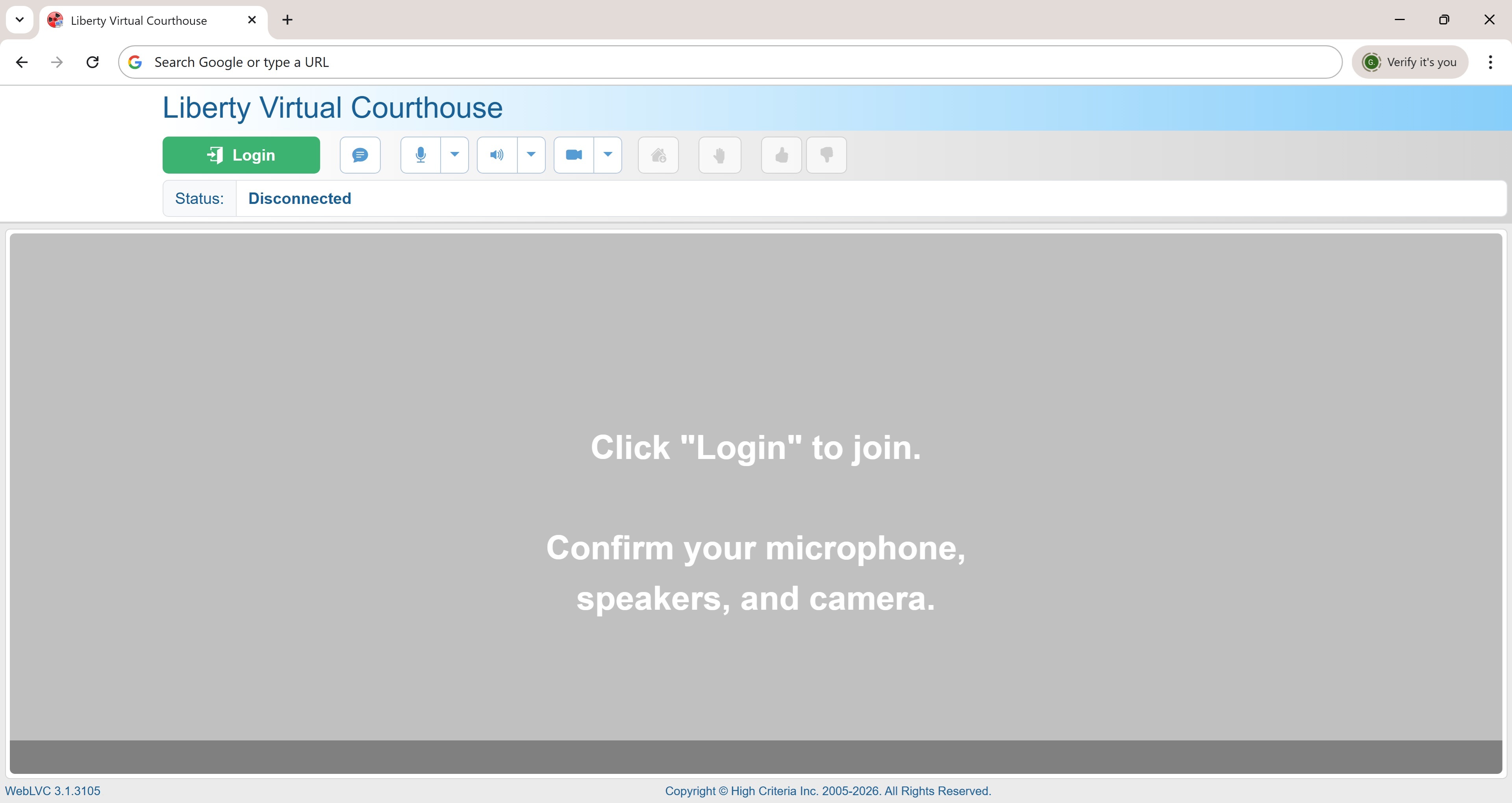
Click the "Login" button.
-
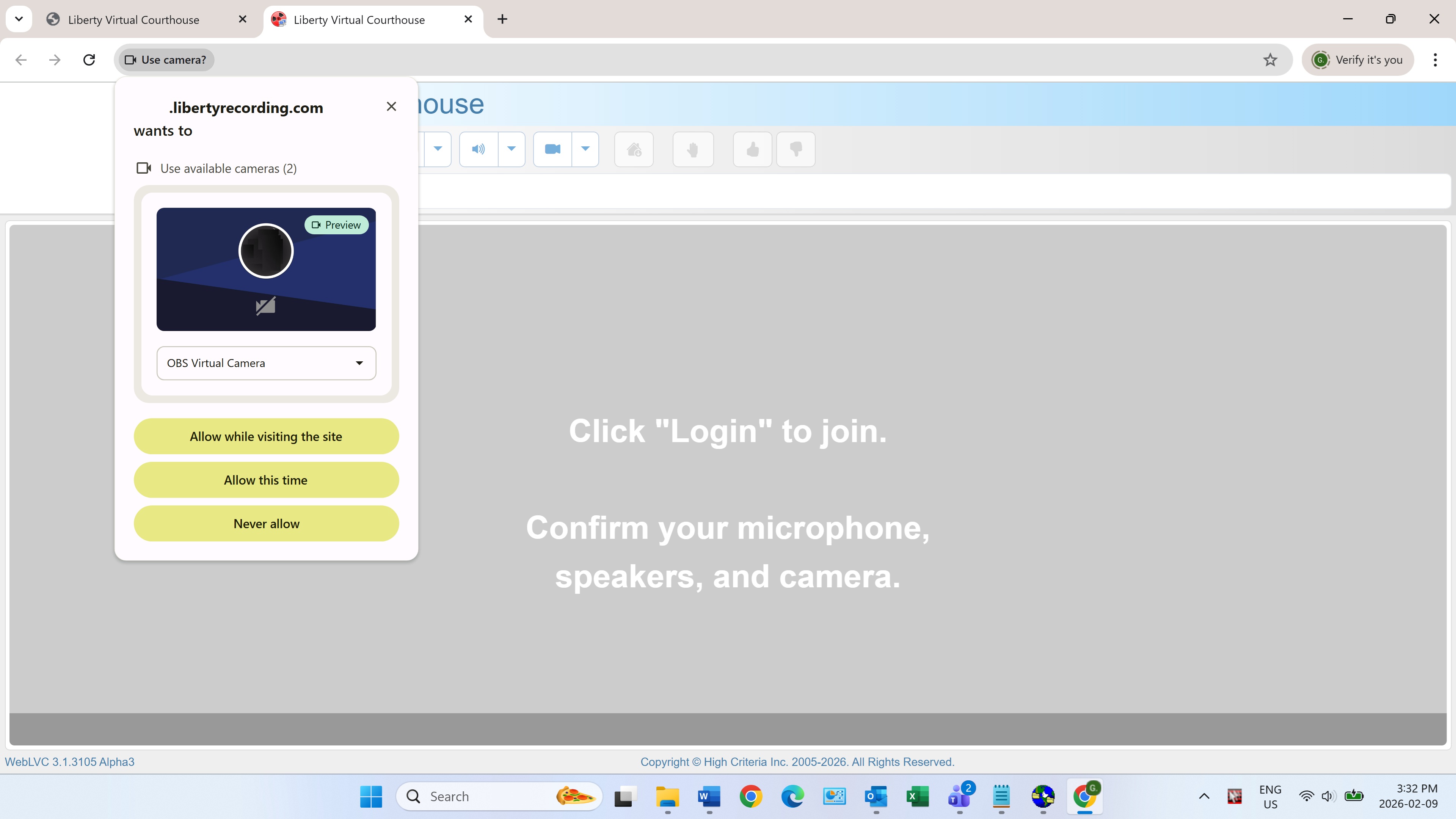
Your browser will prompt to allow access to your camera and microphone.
You must allow access to both the microphone and the camera.
-
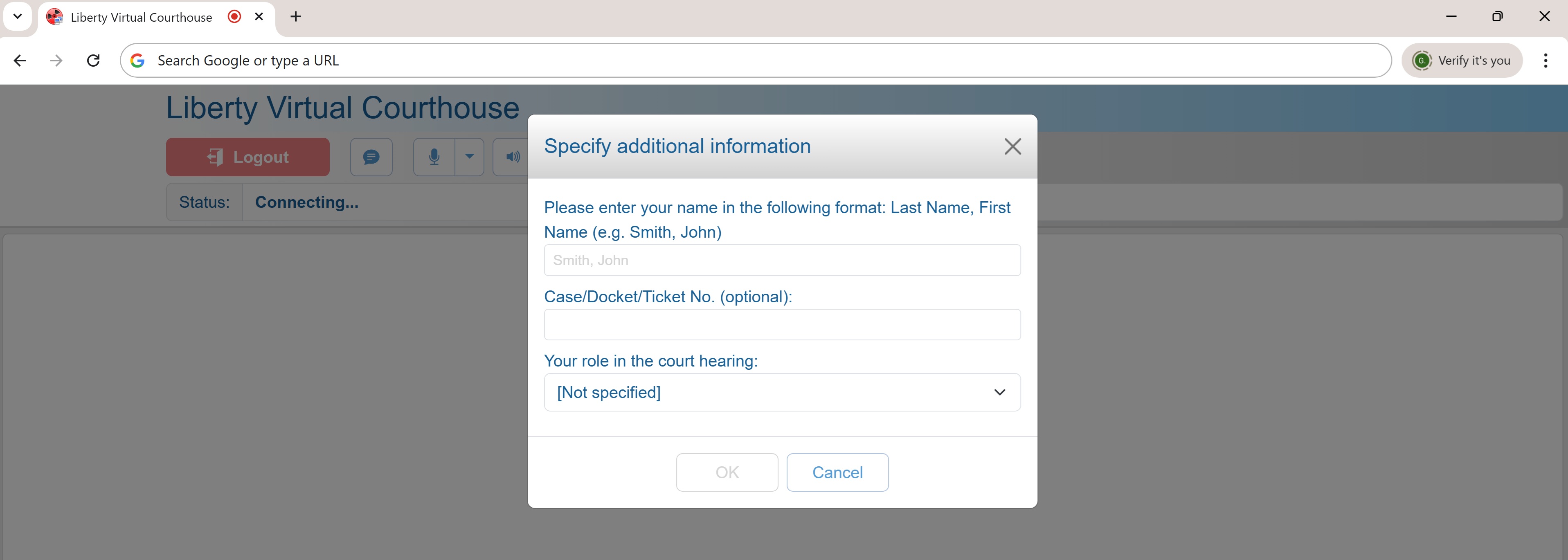
Enter the information about you and your case and then click "ok".
-
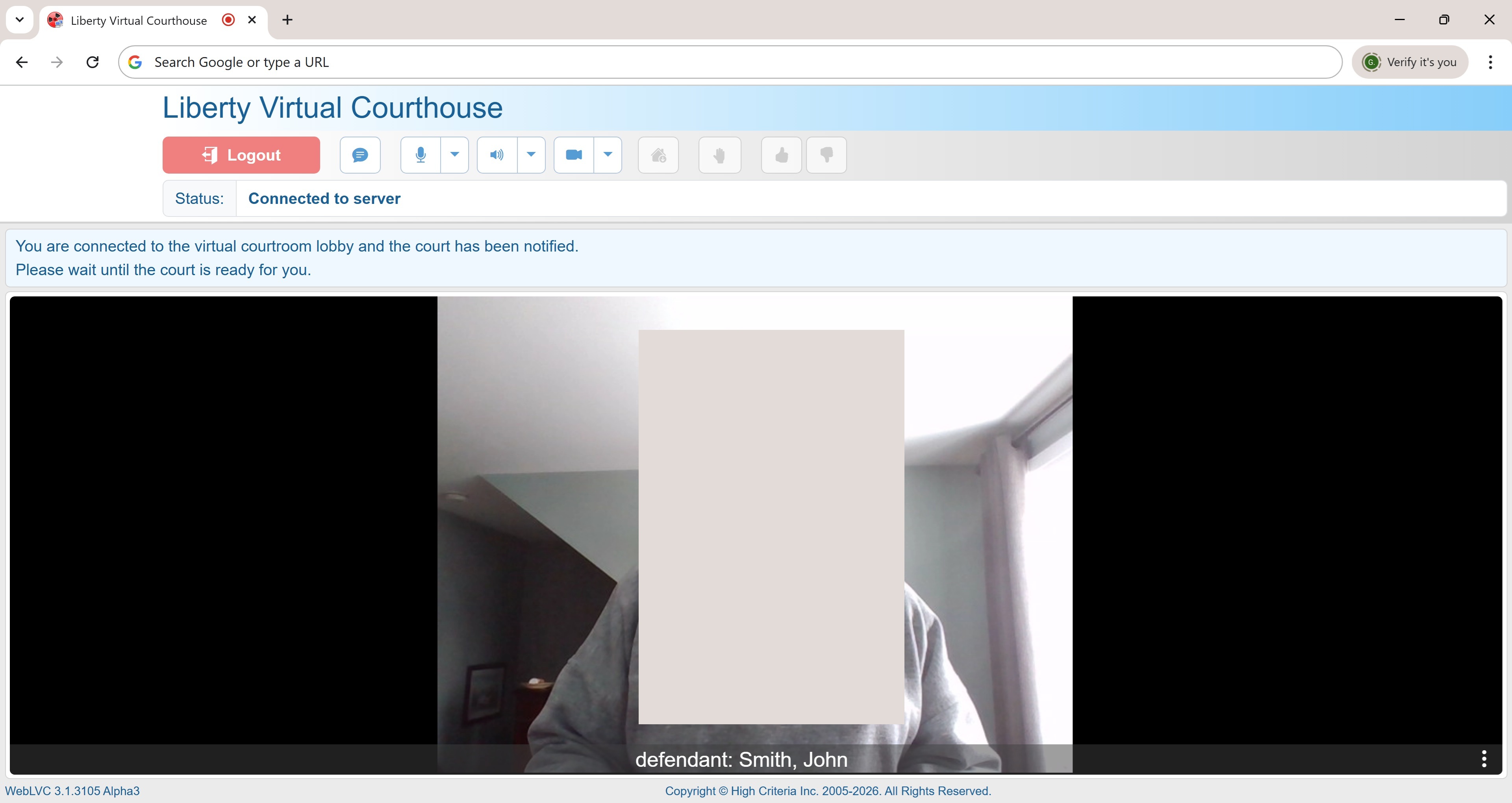
You are now in the lobby of the court and you must wait to be summoned into a courtroom by court staff.
Contact Liberty Recording for more Information
More details on the Liberty Recorder program can be obtained by
contacting Liberty Recording at
905-886-7771 & press 1 or at sales@libertyrecording.com.
|